
Taxes & Fees - Avalara Integration
Avalara AvaTax for dakis
Configuration/User Guide
Avalara AvaTax is a cloud-based solution automating transaction tax calculations and the tax filing process. Avalara provides real-time tax calculation using tax content from more than 12,000 US taxing jurisdictions and over 200 countries, insuring your transaction tax is calculated based on the most current tax rules.
Connect to AvaTax
To make AvaTax available in your MyDakis.com account, contact your dakis representative or sales@dakis.com. Once the AvaTax installation has been made available to your account, follow the below steps:
To make AvaTax available in your MyDakis.com account, contact your dakis representative or sales@dakis.com. Once the AvaTax installation has been made available to your account, follow the below steps:
1) Log in to your Mydakis account
2) Head to the Avalara integration page: https://inventory.mydakis.com/avalara/avalara_configuration
3) Enter the required credentials into the relevant fields (login / password / company ID). The Saved authentication token will be generated when you test credentials and save.
4) Click the TEST CREDENTIALS and save.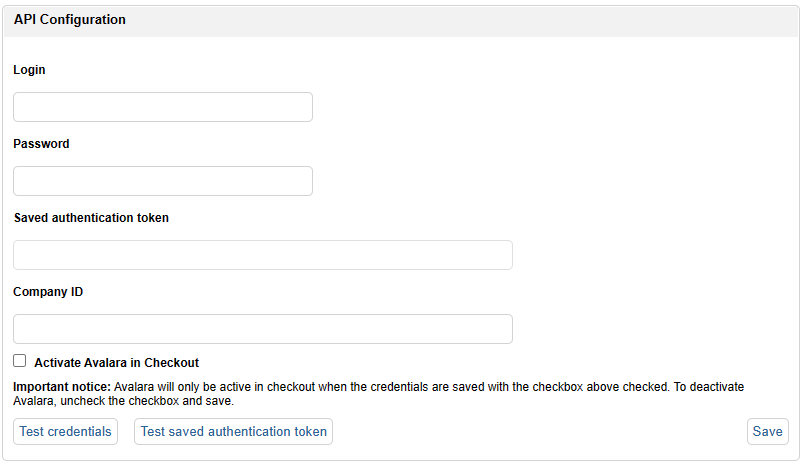
2) Head to the Avalara integration page: https://inventory.mydakis.com/avalara/avalara_configuration
3) Enter the required credentials into the relevant fields (login / password / company ID). The Saved authentication token will be generated when you test credentials and save.
4) Click the TEST CREDENTIALS and save.
Configure Avalara AvaTax
To activate or deactivate Avalara AvaTax tax calculation, use the following steps:
1) Log in to your Mydakis account
2) Head to the Avalara integration page: https://inventory.mydakis.com/avalara/avalara_configuration
- To activate tax calculation in checkout, check the 'Activate Avalara in Checkout' checkbox and click save.
- To deactivate tax calculation in checkout, uncheck the 'Activate Avalara in Checkout' checkbox and click save.
- To deactivate tax calculation in checkout, uncheck the 'Activate Avalara in Checkout' checkbox and click save.
 Assign an AvaTax System Tax Code to a category or item
1) Log in to your Mydakis account
2) Head to the categories overview list: https://inventory.mydakis.com/inventory/list
2) Head to the categories overview list: https://inventory.mydakis.com/inventory/list
Click on the category name to edit the category:
 Open up the Avalara Category section, enter the value found for the category at https://taxcode.avatax.avalara.com/ and hit save.

To assign a category code to an item directly, click the pencil to edit the individual item:

In the product identification section, enter the value found for the category at https://taxcode.avatax.avalara.com/ and hit save.
 * Note that tax codes directly on an item will have precedence on category tax codes for that item. It's important to keep this in mind since your product classification might not line up directly with the product classification of the various tax jurisdictions.
** Note that in absence of a tax category code, items will be treated as fully taxable in checkout.